A couple new features were introduced after I wrote the previous post about DOM Inspector (aka DOMi). Note, some features aren't available in release version yet. So if you want to get an access to them then you need to build DOMi yourself.
You can inspect text attributes of the accessible object (also refer to IAccessible2 text attributes). All you need is to choose 'Accessible Properties' view in the right panel (make sure 'Show Accessible Nodes' menu option of 'View' menu is on) and then switch to 'Text attributes' tab as it shown below.

You can see default text attributes for the selected accessible and inspect text attributes and offsets for each text range where text attributes stay permanent. For example if you have
<p><b>hello</b><i>italic</i></p>
then HTML p element is divided into two ranges, the first text range corresponding to 'hello' text has 'font-weight:700' text attribute, the second text range corresponding to 'italic' text exposes 'font-style:italic' text attribute.
Note, if the selected accessible doesn't support nsIAccessibleText interface then 'Accessible Properties' view doesn't have a 'Text attributes' tab.
Note, this feature is not available in current 2.0.13 version.
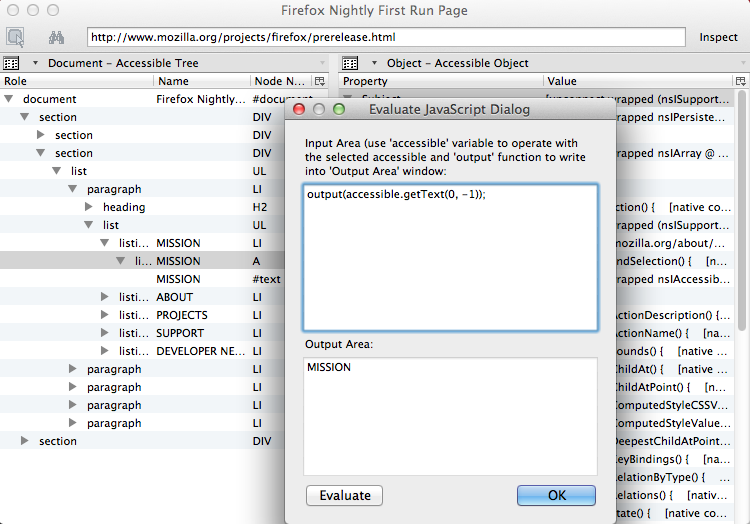
'Accessible Tree' view of the left panel gained a JS style search. Now when you open 'JS console' (right click on the selected item and choose 'Evaluate JavaScript' menu item) you can operate on JS object named tree having following methods:
search
Search though the accessible tree and highlights accessibles complying with
the given criteria.
Arguments
accessible of type nsIAccessible
The root of the subtree the search is performed in.
criteriaFunc of type Function
Function invoked for each traversed accessible to determine whether it complies
with the criteria.
Arguments
accessible of type nsIAccessible
The traversed accessible.
Return value
true if the traversed accessible complies with the criteria, otherwise false.
clearSearch
Clears search results (unhihglights highlighted accessibles)
So say you want to find all text leaf accessibles in the document:

To do that you write the criteria function and invoke the tree.search() on the document accessible.
function searchTextLeafs(aAcc)
{
// Ci is shortcut for Components.interfaces
// nsIAccessibleRole is an interface defining accessible roles
return aAcc.role == Ci.nsIAccessibleRole.ROLE_TEXT_LEAF;
}
// 'accessible' is the selected accessible in the left panel, in our case
// it's the document accessible.
tree.search(accessible, searchTextLeafs);
When you press 'Evaluate' button then all text leaf accessibles in the document are highlighted.
I should add that all diversity of Gecko accessibility API is available for you from JS console and that allows you to create any criteria you need.
In short, this search tool is rather for JS hackers but it's very flexible and easy enough.
Text attributes
You can inspect text attributes of the accessible object (also refer to IAccessible2 text attributes). All you need is to choose 'Accessible Properties' view in the right panel (make sure 'Show Accessible Nodes' menu option of 'View' menu is on) and then switch to 'Text attributes' tab as it shown below.

You can see default text attributes for the selected accessible and inspect text attributes and offsets for each text range where text attributes stay permanent. For example if you have
<p><b>hello</b><i>italic</i></p>
then HTML p element is divided into two ranges, the first text range corresponding to 'hello' text has 'font-weight:700' text attribute, the second text range corresponding to 'italic' text exposes 'font-style:italic' text attribute.
Note, if the selected accessible doesn't support nsIAccessibleText interface then 'Accessible Properties' view doesn't have a 'Text attributes' tab.
Note, this feature is not available in current 2.0.13 version.
Search the tree
'Accessible Tree' view of the left panel gained a JS style search. Now when you open 'JS console' (right click on the selected item and choose 'Evaluate JavaScript' menu item) you can operate on JS object named tree having following methods:
search
Search though the accessible tree and highlights accessibles complying with
the given criteria.
Arguments
accessible of type nsIAccessible
The root of the subtree the search is performed in.
criteriaFunc of type Function
Function invoked for each traversed accessible to determine whether it complies
with the criteria.
Arguments
accessible of type nsIAccessible
The traversed accessible.
Return value
true if the traversed accessible complies with the criteria, otherwise false.
clearSearch
Clears search results (unhihglights highlighted accessibles)
So say you want to find all text leaf accessibles in the document:

To do that you write the criteria function and invoke the tree.search() on the document accessible.
function searchTextLeafs(aAcc)
{
// Ci is shortcut for Components.interfaces
// nsIAccessibleRole is an interface defining accessible roles
return aAcc.role == Ci.nsIAccessibleRole.ROLE_TEXT_LEAF;
}
// 'accessible' is the selected accessible in the left panel, in our case
// it's the document accessible.
tree.search(accessible, searchTextLeafs);
When you press 'Evaluate' button then all text leaf accessibles in the document are highlighted.
I should add that all diversity of Gecko accessibility API is available for you from JS console and that allows you to create any criteria you need.
In short, this search tool is rather for JS hackers but it's very flexible and easy enough.